

The world’s most popular internet search engine has a flight search tool that can help you book your future travel plans. Using these tricks and tips, see how you can use Google Flights to its full potential!
What is Google Flights?
Google Flights is a travel search tool that can help you find the cheapest way to fly. With a simple interface, travelers of all ages can easily look for flight options. We at Frugal Flyer personally make use of Google Flights all the time.
Google Flights is different from most other search engines. It is not an online travel agency (OTA), like Expedia, Kayak, etc. You don’t buy anything from Google Flights, it simply publishes all the flights distributed by the airlines for your perusal.
This means Google Flights really is the most unbiased way to browse for flights or gauge flight pricing. But also has many useful search features available, as we’ll explore.
How to Use Google Flights: The Basics
The basics of searching with Google Flights are as follows:
Step 1: Navigate To Google Flights
Navigate to Google Flights to start your search. Scrolling down will display the different tools you can use on the site, some popular destinations, as well as some frequently asked questions about Google Flights. At the very bottom, you can change the language, location, and even currency of your results.
Step 2: Enter Your Departure & Destination Cities
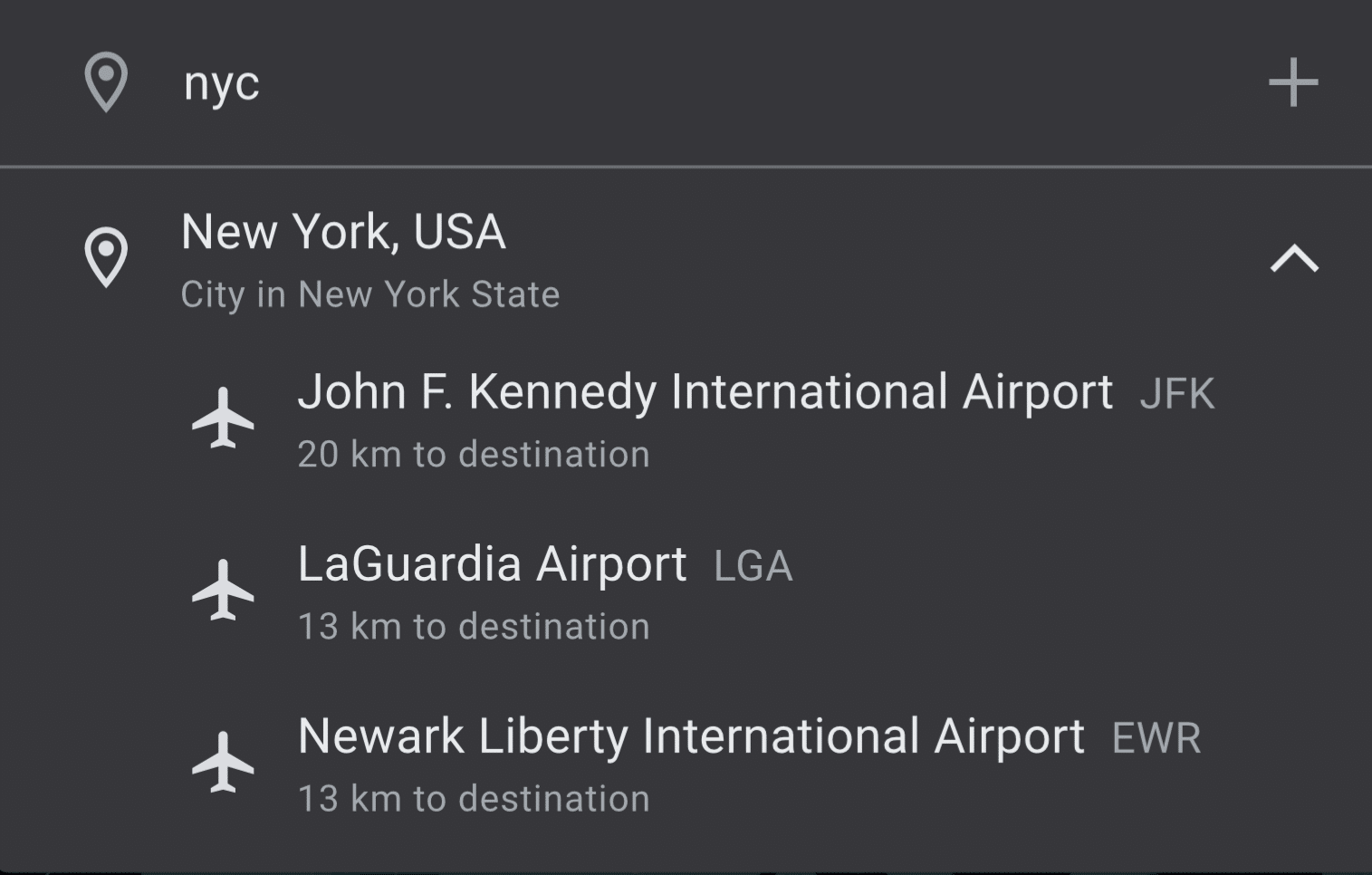
Enter your departure city and destination city for your desired itinerary. Sometimes, larger cities may have a generic designation that can look up all the multiple airports associated with that area. This can be used for either departure or destination.
Step 3: Add Departure & Return Dates
Enter your desired departure and return dates. A calendar will pop up where you can select your desired travel dates or change the length of your desired trip length. The lowest price for the length of the trip is displayed under each departure date.

After selecting a departure date, you can look at prices for other potential return dates.

Step 4: Explore Available Flight Options
Once you select a return date, hit Done in the Calendar box and then press Explore to search flights. You’ll be redirected to a list of results that show various options for flights and airlines. The ‘Cheapest’ tab on the right will show results from lowest to highest in terms of price.

For places with easily accessible train services, like Europe and Japan, search results may include trains as another option to travel.

Step 5: Explore Detailed Flight Information
Pressing the arrow on the right side of each option will give you detailed information such as flight numbers, type of aircraft, and even in-flight experience including legroom and entertainment options.

Step 6: Book Your Desired Flights
Once you’ve selected both flights, you’ll have a summary of the chosen flights and some shortcuts to where you can book your flight.
You’ll also see your baggage allowances or charges and how the price of your trip compares to similar trips. Check out our articles on how to save money on checked baggage with credit card benefits.

Some results may include options for booking through an Online Travel Agency (OTA), such as Expedia. Be cautious with booking through an OTA because any communication with the airline you’re flying with may have to go through the agency instead which can create potential conflict or even missed messages about cancellations.

How To Use Filters To Narrow Your Search
On the Google Flights landing page, you can find some general filters to help find your flights. This includes filtering roundtrips, one-ways, and multi-city bookings, how many passengers or types of passengers are traveling, and the specific booking class you’re looking for.


On the search results page of the site, you’ll be able to use more advanced filters. These include filters for convenience, like layovers, layover length, connecting airports, nonstop flights or number of stops, departing times, price, and even total flight time duration.
There is a filter for airlines and the big three airline alliances. For example, those who hold Air Canada Aeroplan status will have some benefits reciprocated on Star Alliance-affiliated airlines like United and Singapore Airlines.
In North America, United Airlines and Air Canada are associated with Star Alliance, Delta and Aeromexico are affiliated with SkyTeam, and Alaska Airlines and American Airlines are Oneworld alliance members.

Google Flights: Advanced Features
Search Multiple Cities
You can select multiple airports or individual cities at the same time to compare how much it would be to fly there. If you’re planning a trip with different stops, you can compare multiple cities to see which is faster or cheaper to fly to. Press the plus sign on the right side of the destination search box to add multiple cities. You can even search by entire continents as well.

I find the ability to search multiple airports and cities is a key feature that allows flexibility in my travel planning and research.
Alerts & Price Tracking
Google Flights has the option to send notifications if you’re signed into Google when prices change after your search. Press the ‘Track Prices’ toggle switch just under the first three flight results to opt in.

An example of a price change notification would look like this:

This is a useful feature to track flight prices and is similar to one of the key features we look for in an award-specific flight search engine like Seats.aero.
Calendar View
Searches also come with a calendar view which can compare prices from dates close to what was initially chosen.

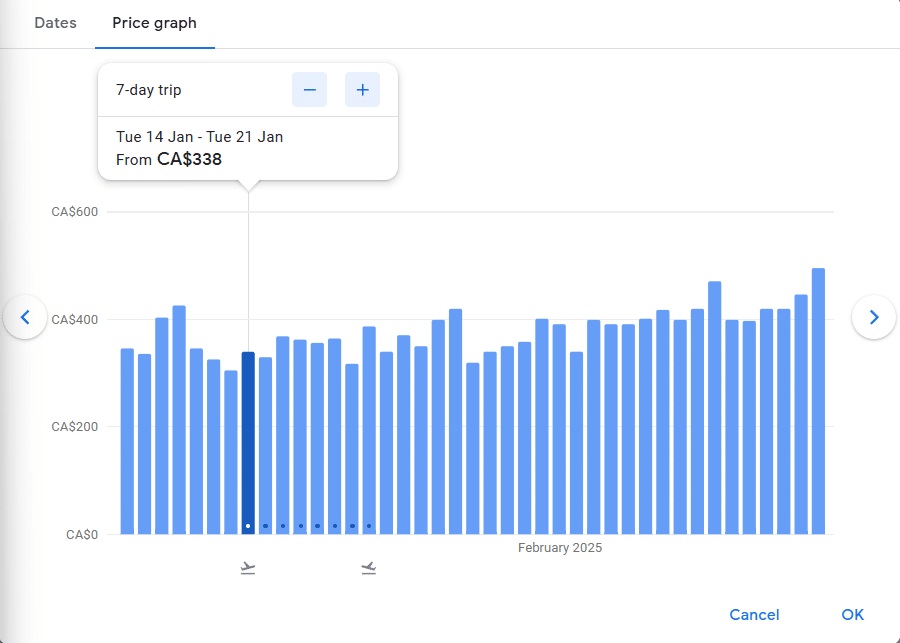
You can also display a price graph that works similarly.
Itinerary Sharing
At the top right of your chosen flight itinerary, you can share the itinerary chosen to Facebook or X (Twitter). You can also copy the link provided to share through your own applications.

Flight Insights
Google will also display a price history of how much a similar trip cost within the last few months. Price histories can be found for searches between an origin and destination or specific flight itineraries and segments.

Google Explore (Map View)

Google Explore is a function of Google Flights that can help travelers determine where they want to go for a trip. For frequent flyers and those chasing airline status programs, this can help immensely in looking up which flights have the best ROI in terms of status progress.
I used Google Flights to help chase Air France/KLM Flying Blue Gold Status which includes SkyTeam Elite Plus benefits including priority boarding and free checked bags.
Explore Destinations With Places
If you’re looking to travel abroad but don’t know where to start, you can use Google Explore and input a continent, region, or country into the destination box. This will display a bunch of cities on a map, allowing you to compare prices for travel from your origin.

Explore Destinations With Dates
Google Explore allows users to select specific dates of when they want to travel or let Google find the cheapest flight deals for a weekend, week-long, or two-week trip within the next 6 months.

Explore Destinations With Price
If a budget is a concern regarding your next trip, users can also set a maximum price range for a potential trip. Moving the slider to the left will only list and show destinations on the map within your budget.

Pairing Google Flights With Other Tools
Legrooms+ for Google Flights (Chrome Extension)
Legrooms+ is a Google Chrome web extension that adds information to Google Flights to display aircraft type, available entertainment and power, and legroom on a given flight.

If you click on the aircraft type, it links to a SeatGuru aircraft chart which shows the layout of a plane.

ITA Matrix & ITA Matrix Powertools (Chrome Extension)
ITA Matrix is a flight search software that powers Google Flights. With a similar layout to Google Flights, ITA Matrix has even more advanced search filters. You can filter results by using specific codes in the Advance Controls to set your search parameters.

Unlike Google Explore, you cannot set the origin or the destination to multiple cities in different countries. For example, if you’re looking to fly to Asia, you can put Tokyo, Osaka, or Nagoya in the destination box but not other non-Japanese cities like Seoul, Hong Kong, etc.

The itinerary page displays pricing details, including the different charges and taxes added to the fare.

You can also get a Chrome web extension called ITA Matrix Powertools, which attaches links to airline and OTA sites where you can purchase flights and book the itinerary chosen.

ITA Matrix is a sophisticated software with some more advanced use cases than Google Flights. We hope to cover it in more detail in a future article.
Conclusion
Google Flights can help you look where to go for your next trip. With simple-to-use tools and many options for filtering search results, Google Flights makes it easy to the cheapest fares for your next flight. If you want to compare legroom and entertainment options on flights, you can download some Google Chrome web extensions to refine searches further.
Frequently Asked Questions
At the very bottom of the Google Flights page, you can change the language, country, and currency of what is being displayed. However, depending on the end result and airline, the flight may be charged in the original currency it was displayed in.
For example, searching for domestic flights on most US carriers will be charged in US dollars even if you set the page’s currency to Canadian Dollars.
You can do a multi-city search by selecting ‘Multi-city’ at the top of the search area.

Google Flight Alerts can be set up by turning on notifications from search results between two places or on flight pages.
Google Flights gets data using ITA Software from a variety of flight schedules and travel partners.
Google Flights will show the major airlines, but Google continuously adds more carriers like Southwest as a recent addition. Some itineraries will show ‘Price unavailable’ as a search result in the case where you aren’t able to see how much a flight is.

Google Flights prices usually include taxes and fees, however additional add-ons like carry-on and checked baggage charges are not included. Bag allowances and baggage-related charges are displayed for most flights.
No, Google Flights does not have a mobile app. However, their mobile website is very similar and easy to use like their desktop site.

Andy Leung
Latest posts by Andy Leung (see all)
- Haneda vs. Narita: Which Tokyo Airport Should You Choose? - Oct 9, 2026
- Financial Institution Partnerships with Sports Teams in Canada: How Can You Benefit? - Jul 31, 2026
- Review: Petaling Jaya Marriott Hotel - Jul 29, 2026
- Eurail Pass: Complete Guide to Saving Money on European Train Travel (2026) - Jun 8, 2026
- How to Get to Vancouver Island (With and Without Points) - May 4, 2026



Is there anyway to get price alerts? I.E If a Berlin-London flight drops below $100, then you can get alerted?
Hi James! Unfortunately, Google Flights doesn’t allow for custom price alerts; you would have to check periodically. You can subscribe to notifications about price changes for travel itineraries or specific flights, but it also includes any increases. Hope this helps!
Is there a tool that does this? What I’m really looking for:)
Apologies for the late reply! Unfortunately there is no tool that can notify you about prices going under a specific value.